How to Run Heavy Windows Apps on a Low-End Laptop Without Melting Your CPU
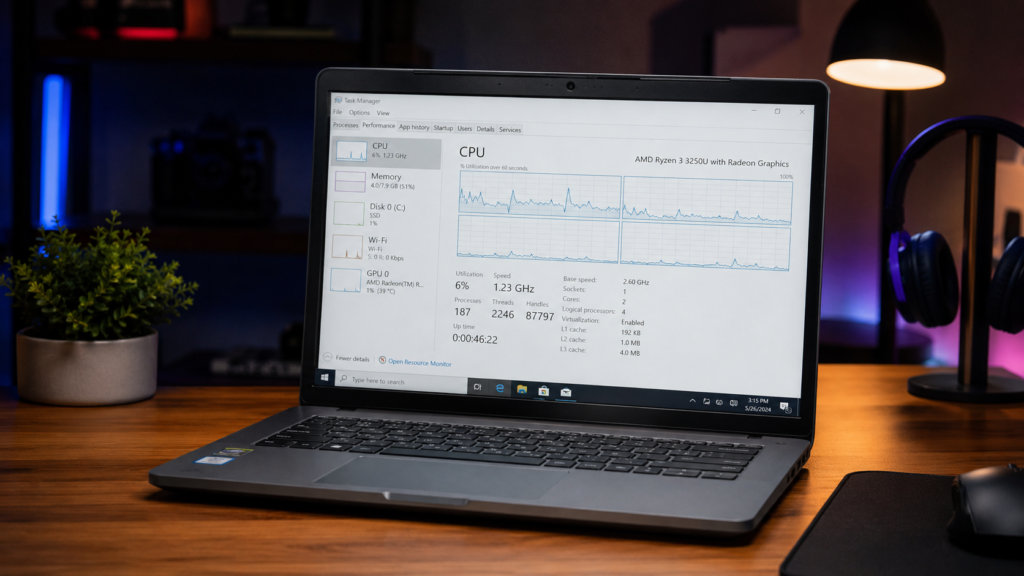
Let’s be real for a second: trying to run modern desktop apps on a $250 budget laptop or an aging dual-core ThinkPad is an exercise in pain. You open two Chrome tabs, Spotify, and a code editor, and suddenly your fan sounds like a Boeing 747 taking off while your cursor freezes in place.
You don’t need a $1,500 MacBook Pro to get through college or run your daily workflow. With a few targeted OS tweaks and light runtime environments, you can pull genuine performance out of 4GB to 8GB of RAM and an entry-level CPU.
Here is the Brocessor breakdown on optimizing low-end hardware for heavy apps.
VERDICT: Best for Light Multitasking & Battery Recovery
COST: $0 (100% Free Tweak Set)
1. Stop Windows Telemetry & Background Bloat
Out of the box, Windows 10 and 11 run dozens of background telemetry scripts, indexing tasks, and visual effects that eat up 20% to 30% of your CPU cycles before you even open an app.
- Disable Startup Programs: Press
Ctrl + Shift + Escto open Task Manager, head to the Startup tab, and disable everything except essential drivers (like audio and touchpad). - Turn Off Visual Effects: Search for “Adjust the appearance and performance of Windows” in the start menu. Select Adjust for best performance. This disables window animations and smooth-scrolling routines that drag down integrated graphics cards.
- Kill Background Apps: Go to Settings > Privacy > Background apps and toggle off permission for apps to run in the background.
2. Swap Heavy Desktop Apps for Web App Wrappers
The biggest memory hog on budget systems isn’t the OS—it’s Electron apps. Apps like Discord, Slack, VS Code, and Spotify are essentially individual instances of the Chrome browser running in separate windows. Running three of them simultaneously eats 4GB of RAM effortlessly.
RAM BENCHMARK: Native Desktop App (~650MB RAM) vs. Progressive Web App (~180MB RAM)
- Use PWAs (Progressive Web Apps): Instead of downloading the native Discord or Spotify desktop apps, open them in Microsoft Edge or Brave, click the three dots menu > Apps > Install this site as an app. You get a windowed application experience at a fraction of the RAM overhead.
- Lightweight Text Editors: If you code, swap heavy IDEs for lighter alternatives. Use Neovim or lightweight VS Code with telemetry and extra extensions disabled.
3. Tune Virtual Memory (Paging File)
When your physical RAM fills up, Windows starts writing idle memory blocks to your drive (the Paging File). If your page file is unoptimized or running on a slow drive, your system hitches every time you switch tabs.
- Search for View advanced system settings in Windows.
- Under the Performance section, click Settings -> Advanced tab -> Change under Virtual Memory.
- Uncheck “Automatically manage paging file size for all drives”.
- Select your custom size: set Initial size to
1.5x your physical RAM(e.g., 6144 MB for 4GB RAM) and Maximum size to3x your physical RAM.
Bro Tip: If your laptop still runs on an old mechanical Hard Disk Drive (HDD), no software tweak will save you. Spending $20 on a cheap 248GB SATA SSD will feel like buying a brand-new computer.
4. Aggressive Tab Sleeping
Browsers are notorious for stealing resources from background applications. If you need to keep 15 tabs open for research while running a desktop app, turn on hard tab-sleeping routines.
- Enable Efficiency Mode in Microsoft Edge or Memory Saver in Google Chrome (
Settings > Performance). - This freezes inactive tabs after 5 minutes, instantly freeing up 1GB+ of system memory for your primary work app.
The Brocessor Verdict
You don’t need to drop money you don’t have on a hardware upgrade just to get smooth performance. By stripping out Windows visual bloat, switching to web app wrappers, and tuning your virtual memory, an entry-level laptop becomes completely usable for daily productivity.